

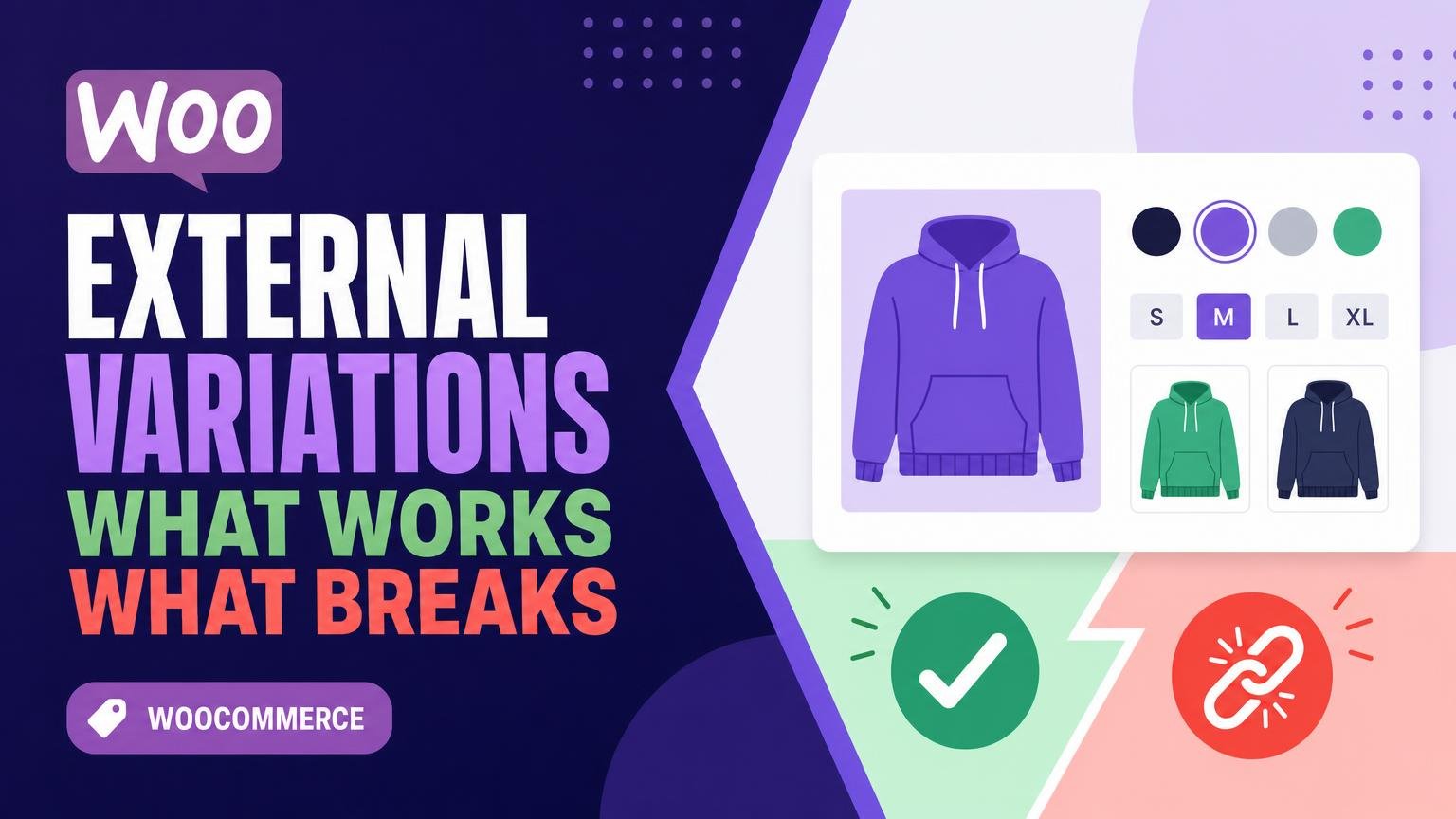
A variation is not merely a label when the price, stock and destination change with it.
A shopper picks navy, selects medium, sees $42, and expects the button to carry that exact choice forward. On a normal WooCommerce variable product, that chain is held together by one store: the selected variation has its own price, availability, SKU and cart line.
An external product works differently. Its button usually sends the visitor to a retailer’s URL, while the retailer—not WooCommerce—controls the real option picker, stock and checkout. One outbound link can show a product, but it cannot reliably promise that navy medium is selected or still costs $42 after the hand-off. Some retailers accept a variant-specific URL; others rebuild their links, require a session, or change their option IDs without notice. That is why “external variations” sounds like a small catalogue setting but becomes a question of whether two separate stores can preserve the same selection.
- A retailer’s link may target a specific variant, but it does not make that retailer’s live price or stock available to WooCommerce.
An external product is not a variable product
External product
An external product displays one item in the catalog and sends the shopper to a URL elsewhere to buy it. WooCommerce can show a button and an optional displayed price, but it does not create a normal cart line or run checkout for that item.
Variable product
A variable product stays inside WooCommerce. It has one parent listing and several variations, such as Small/Blue or Large/Red, each of which can carry its own price, SKU, stock quantity, image, and shipping settings.
Variation
A variation is a child record managed by the same WooCommerce store as its parent. Once an option is selected, WooCommerce knows which specific purchasable item belongs in the cart.
What causes the confusion
Both models can present choices on a product page, but their jobs differ. An external link can point to another seller’s page; it cannot turn that remote seller’s options into WooCommerce variations.
Practical rule
Use an external product when the destination site handles the sale. Use a variable product when the store must track option-level pricing, inventory, and orders itself.
What WooCommerce can and cannot carry
Attributes describe; variations sell
WooCommerce product data has two quite different jobs. Catalogue data helps visitors understand what exists: colour, material, fit, dimensions, or compatible model. Purchasing data determines what can actually be bought: a price, stock status, SKU, add-to-cart behaviour, and—in the external-product case—a destination URL.
An external product has a deliberately small purchasing core. It can display a button that sends the shopper to one URL, optionally using a custom button label. That works neatly for a single affiliate item, supplier listing, booking page, or product page on another shop.
Attributes do not extend that core. A colour attribute may show “Blue,” “Green,” and “Red,” but those values are descriptive unless they belong to real WooCommerce variations. They cannot each hold their own outbound address, live availability, or price. Changing an attribute selection therefore does not tell WooCommerce which third-party listing should open.
Why the handoff becomes unreliable
Even when a theme or plugin displays attribute selectors on an external product, the selected value is not a dependable order instruction. WooCommerce has no built-in mapping such as:
| Selected option | Required purchasing data |
|---|---|
| Blue / medium | its own URL, price, and availability |
| Green / large | its own URL, price, and availability |
Without that mapping, the outbound button still represents the product’s single saved link. The destination store also receives no standard WooCommerce payload confirming the selected option. A link might be manually constructed with query parameters, but the receiving site must be built to recognise them, and its price and stock remain its own responsibility.
For a small catalogue, separate external products—one per destination—are often clearer. For a true option picker, a specialised integration or custom development must connect every choice to the matching external offer and keep the displayed information accurate.
An attribute dropdown may look like a variation picker while doing nothing to the outbound URL. Before publishing, test every choice and confirm that the landing page, displayed price, and availability all match the selection.
Let the retailer handle the options
When WooCommerce mainly helps visitors discover a product, the cleanest arrangement is often one external product pointing to the retailer’s own option or configuration page. Colour, size, bundle, availability, and final pricing then remain in the system that actually sells the item.
This avoids maintaining a parallel set of variations that can drift out of date. It also gives the retailer one clear place to apply its shipping rules, promotions, stock checks, and option logic.
Make the price claim match reality
A single WooCommerce price should not imply that every option costs the same. If variants begin at a known amount, “From $49” is more honest than “$49”. If prices change often or cannot be checked reliably, omit the price or use wording such as “See current price at retailer.”
The product description can still mention broad choices—such as “available in several sizes”—but it should not present them as selectable WooCommerce variations.
Label the button as a handoff
The external button should tell shoppers what happens next. “View options at Retailer” or “Choose size at Retailer” sets a better expectation than a generic “Buy now.” A label such as “Check current price” also works when price is the main uncertainty.
This model is not a substitute for an on-site variant picker. It is a deliberate, low-maintenance route: WooCommerce introduces the item, while the retailer completes the choice and sale.
When each option needs its own link
A separate external product earns its place when it points somewhere meaningfully different: a colour-specific retailer page, a prebuilt configuration with its own SKU, or an affiliate URL that must identify one exact item. In those cases, sending every visitor to a general product page can create an extra search step and make campaign reporting less useful.
Split only when the destination matters
Separate listings are usually worth considering when:
- each colour or size has a distinct landing page that opens with that option already selected;
- bundles, capacities, or editions have different offers, availability, or seller pages;
- a tracked link needs to be tied to a particular configuration or promotion;
- the retailer does not provide a reliable way to select the option after arrival.
For example, three camera kit pages may be sensible if each kit has a different lens, price, and outbound URL. Three listings for the same T-shirt merely because it comes in red, navy, and black are harder to justify when all links land on one retailer page with working colour swatches.
Keep the catalogue from becoming a clone wall
The trade-off is upkeep. A retailer can rename a colour, retire a model, or redirect a campaign link without notice. Ten near-identical cards also make browsing feel repetitive and may compete with one another in search results.
A simple convention keeps this manageable: use a shared base name plus the differentiator, such as “Trail bottle — 750 ml” or “Trail bottle — insulated lid kit.” Put siblings in one collection or category, use the same main image style, and state the defining option in the short description. A small spreadsheet with the WooCommerce product ID, destination URL, retailer SKU, and last checked date makes broken or outdated links easier to spot.
When the only difference is cosmetic and the destination is identical, one external product remains the cleaner choice. When the click must reach a specific offer, separate products are an honest representation of what is being linked.
Tools can polish the handoff, not replace it
An external-button plugin can make a catalogue feel more deliberate: it may add a clearer call to action, open the retailer in a new tab, or switch links by a simple choice. A custom selector can also show colour swatches or configuration labels before the visitor leaves the site. Neither tool turns those choices into WooCommerce variations with their own stock, price, SKU, or cart behaviour.
This is where a dedicated external button plugin can help: presentation is the problem, rather than inventory management. Before installing one, test its URL rules. It should reliably produce the exact destination required for each option, including retailer variant IDs, affiliate parameters, and encoded characters. A selector that only changes button text is not enough when each choice needs a different page.
Imports deserve the same caution. A feed may create product titles, images, and base prices, but it rarely maintains a dependable map between local attributes and a retailer’s live option pages. Confirm what happens when an item is discontinued, renamed, or temporarily unavailable; a scheduled import can preserve a stale link very efficiently.
Analytics should identify both the product and, where possible, the selected option. Use consistent campaign tags and test a few outbound clicks in analytics after publishing. Retailers can change URLs, redirect through marketplaces, or remove query parameters without notice, so periodic link checks remain part of the setup.
Treat each option link as an outbound referral, not a synced variation. Test the destination, tracking tag, and retailer availability after every significant catalogue or retailer update.
Choose the structure the feed can actually support
-
Use one destination for a changeable range
A single external product works best when the merchant’s own page reliably contains the current colours, sizes, stock and price. It keeps a broad range from becoming hundreds of thin affiliate listings.
PreferOne stable retailer page that genuinely contains the whole range.AvoidA single page that hides discontinued or materially different options. -
Split listings when the destination really differs
Create separate external products for variants with their own landing pages, tracking links, prices, or buying decisions—such as a bundle versus a single item. Clear titles and a shared parent-style naming pattern make these easier to audit later.
PreferA distinct merchant URL and a meaningful reason to compare separately.AvoidSeparate records merely to mimic a WooCommerce variation selector. -
Let feed quality set the level of detail
Before importing at scale, check whether merchant affiliate-feed variants keep stable IDs, URLs, availability and option names across updates. A modest catalogue with dependable fields is easier to maintain than a detailed one built on guesses.
PreferConsistent identifiers and scheduled refreshes that flag missing or changed links.AvoidMapping incomplete option data into fields that look authoritative. -
Treat selectors as a promise
A colour or size control suggests that the selected choice will reach the matching item. If the feed cannot supply a verified option-specific URL, show the available range in copy and send visitors to the retailer’s chooser instead.
PreferControls only where selection has been tested end to end.AvoidDecorative selectors that change nothing at the destination.
Test the handoff like a shopper
-
Open every outbound button on a desktop browser
Check the destination domain, landing page, price context, and retailer availability. A button labelled for a size or colour must not quietly lead to a generic page with no matching option selected.
-
Repeat the test on a phone
Use a real narrow screen if possible. Confirm that option labels remain readable, buttons are easy to tap, and any retailer page does not bury the relevant choice behind a popup or app prompt.
-
Check links in the published product, not only the editor
Caching, page builders, and tracking parameters can alter a link after it is saved. Test each distinct URL, including links created by a plugin or import.
-
Compare the promise with the destination
Remove precise price, stock, or “selected” claims unless the retailer page reliably supports them. “See options at retailer” is often more honest than implying a carried-over selection.
-
Record the result and recheck after changes
A small link sheet makes later audits far easier when setting up a WooCommerce affiliate store or replacing retailer URLs.
Test while logged out or in a private window when retailer location, cookies, or affiliate redirects may affect the page.
Name the structure honestly
- Show option information when it helps comparison but does not need to drive the outbound purchase.
- Split products when each option has its own dependable destination, price context, or tracking link.
- Reserve “variation” for options WooCommerce can actually select and sell within its own product flow.
The deciding test is simple: can WooCommerce own the selected option through price, stock, cart, and checkout? If not, it is not a WooCommerce variation—regardless of how neatly the choices appear on the page.
A clear external handoff is more useful than a convincing imitation of one. Honest labels and regularly tested links prevent the most frustrating shopper surprises.









14 responses to “WooCommerce External Product Variations: What Works and What Breaks”
I wish more plugin descriptions said this plainly. “Supports external variations” often means it adds dropdowns and swaps an outbound URL, not that WooCommerce suddenly owns the retailer’s inventory and checkout. Big difference.
For a feed with one parent product and child rows for each size, would you import the parent as a single external product and ignore the child rows? Or create separate products from the children?
The answer probably depends on whether the feed gives a usable destination URL per child, but I’m curious how people keep the catalogue from becoming a mess.
That is exactly the deciding factor. If child rows have stable, option-specific URLs and the options need separate labels, prices, or tracking, importing separate external products is defensible. Otherwise, use the parent destination, communicate a price range, and let the retailer collect the selection. A consistent naming convention—such as product name plus option—and a feed audit field for the destination URL make either approach easier to maintain.
I manage a small comparison site and the retailer changes URLs more often than they admit 😅 “Let them handle the options” is sensible, but it can also mean a buyer lands on a discontinued default colour. Is there a practical rule for deciding when the extra maintenance of separate links is worth it?
A useful rule is to separate options only when the destination page or tracking outcome is materially different and reasonably stable. If a link reliably opens a specific configuration, has a distinct offer, or needs separate reporting, separate listings may earn their upkeep. If the retailer regularly resets the selection or retires URLs, a consolidated “From” listing is usually more honest.
This has been my experience too. We started with one listing per size, then spent every Monday fixing dead links. Now we only split them when the retailer supplies a proper, stable SKU-level landing page.
The point about not implying a verified handoff is important. I have seen stores show an in-stock badge beside each selected option, when that stock was imported yesterday from somewhere else. That is a surprisingly quick way to create support emails.
Would you avoid option-level stock wording entirely for external products, even when a feed includes availability?
For most external-product setups, yes, I would avoid presenting option-level availability as live purchase truth. You can use feed data operationally or show a dated/qualified availability message where appropriate, but the button and surrounding copy should make clear that final availability is confirmed by the retailer.
Agreed. “Check retailer availability” may sound less slick, but it is better than “In stock” turning into “actually no, sorry” five minutes later.
What about retailers whose product URL accepts a variant ID in the query string? Could separate WooCommerce listings link directly to each variant, provided the retailer keeps those IDs stable?
I know that is still not a true variable product, but it seems more useful than sending someone to a generic page and making them pick the size again.
Yes—separate external listings can work well in that situation. The important part is treating each listing as its own outbound offer: give it a clear option name, its own URL, and a routine to test that the destination still opens the intended configuration. Even then, the retailer remains the source of truth for price and stock.
Could UTM parameters or affiliate tracking links break the variant parameter when both are added to the URL? I’ve inherited links with three question marks and enough ampersands to qualify as abstract art.
Seems like URL testing needs to cover the final tracked link, not just the clean retailer URL.
The mobile testing reminder should not be an afterthought. A retailer link that preserves a selection on desktop can dump mobile visitors on the main category page after an app banner or redirect. Been there, got the angry analytics chart.
The distinction between an external product and a variable product is the bit people keep trying to blur. If every colour is actually bought on the retailer’s site, calling the swatches “variations” on the affiliate site feels misleading, even if a plugin can make it look nice.