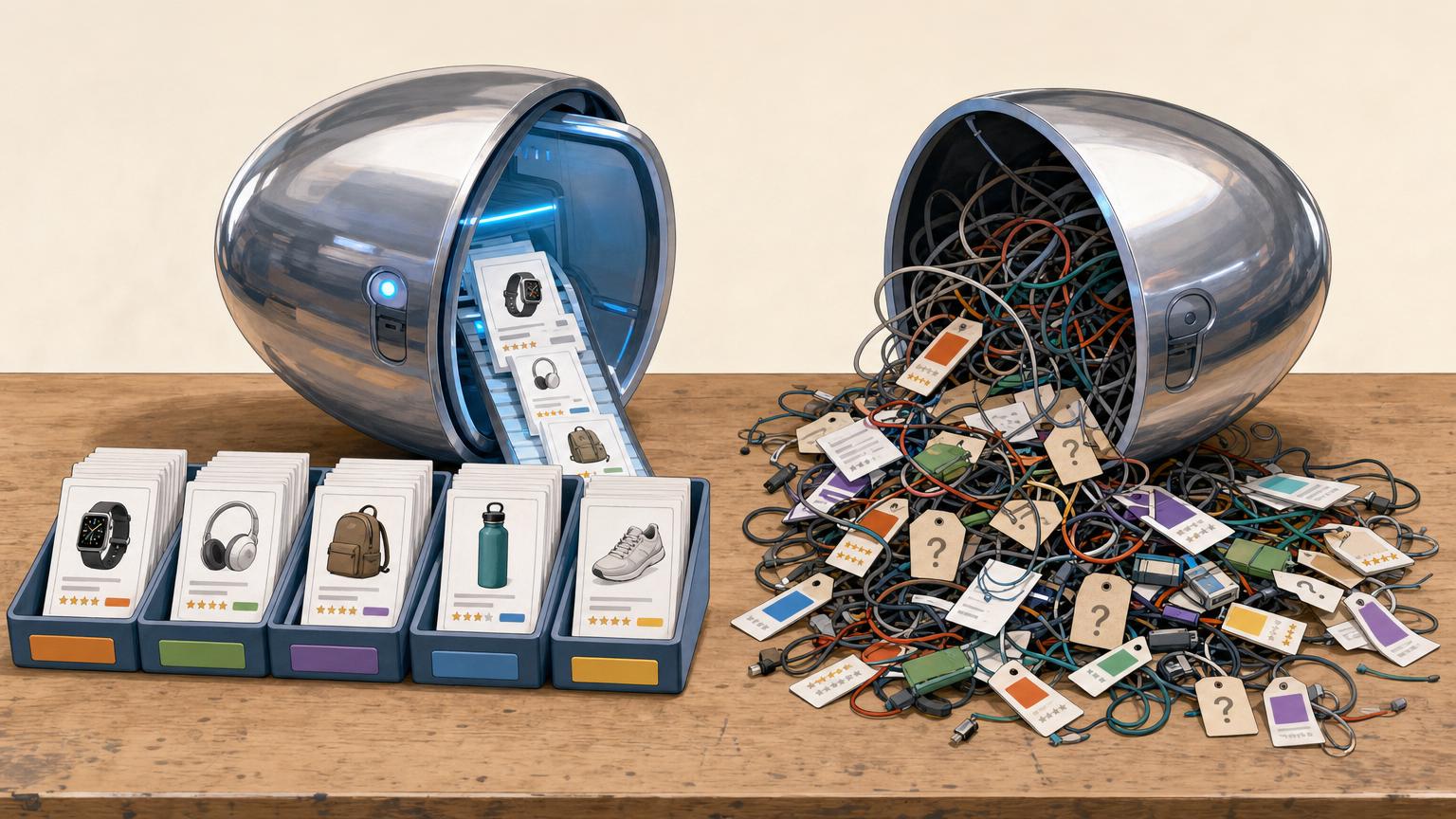

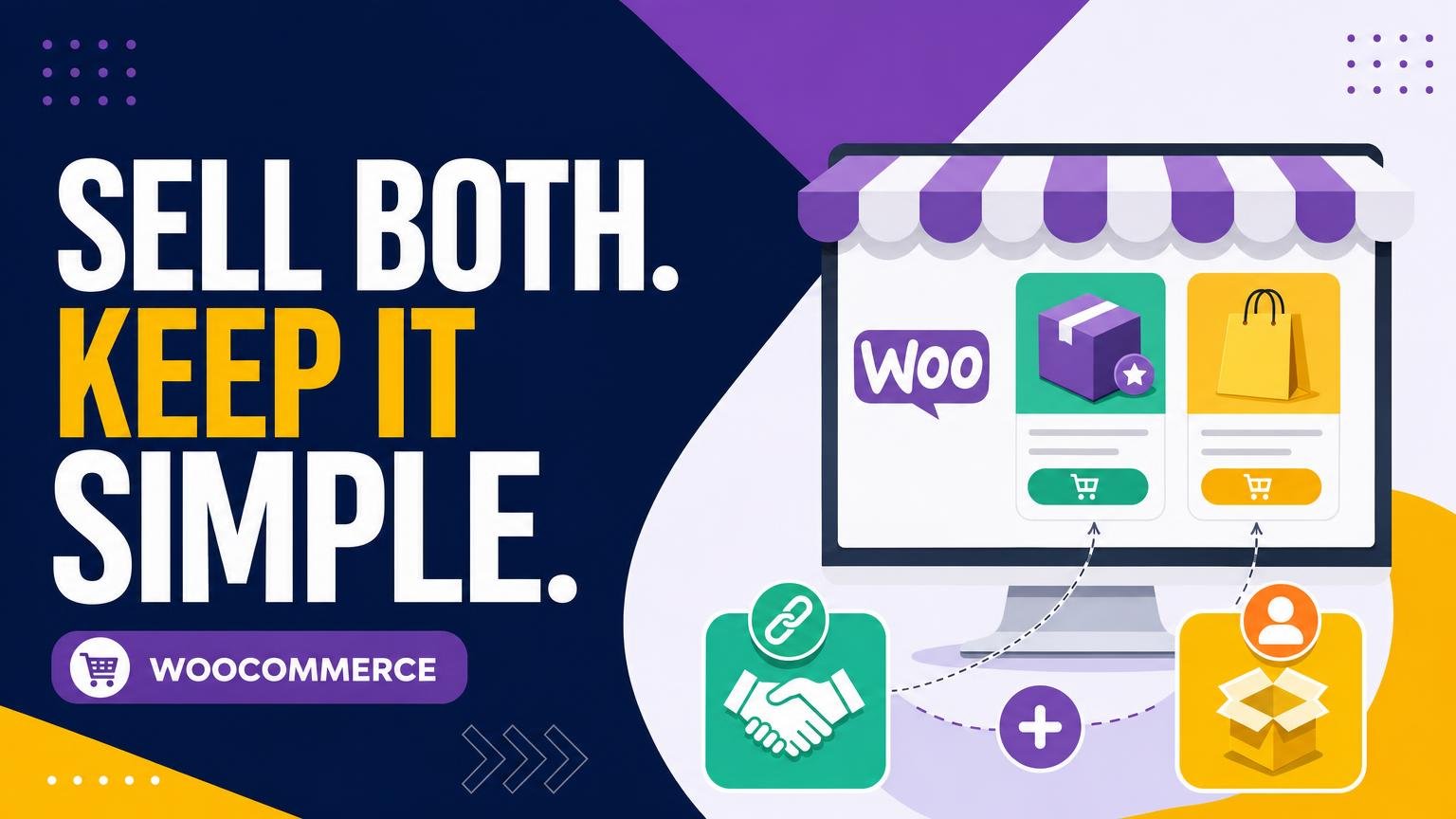
A tidy catalogue can still create a messy buying experience.
A shopper clicks Add to cart, expecting a familiar checkout, then lands on another retailer’s site—or finds a button that behaves differently from the last product viewed. Nothing may be technically broken, yet the change of route can feel like a broken promise.
Mixed catalogues work best when the destination is obvious before the click. A listing that ships through the store needs to look and read differently from one that refers a customer elsewhere. Clear button text, a short disclosure near the price, and consistent labels such as “Buy on Partner Site” remove the small moment of doubt that causes abandoned purchases. The goal is not to hide affiliate links among store items; it is to make both paths feel deliberate and trustworthy.
- Use destination-specific button labels rather than a generic “Buy now.”
- Place any external-site notice beside the call to action, not in a distant footer.
Checkout location defines the job behind each product
Price
For a store-owned item, WooCommerce displays and controls the selling price. For an affiliate item, the merchant’s site sets the final price, so a listed amount can become stale.
Stock
Own products need stock quantities, backorder rules, and availability managed in WooCommerce. Affiliate products usually point to stock held and updated by the external seller.
Payment
A WooCommerce checkout collects payment for items sold by the store. An affiliate link sends the shopper elsewhere, where that merchant handles payment and order confirmation.
Fulfilment and returns
The WooCommerce store packs, ships, and supports its own orders, including refunds and returns. The external merchant fulfils affiliate purchases and applies its own return policy.
Two products may share the same catalogue layout, photos, and product details, yet follow different journeys.
The deciding question is not what the item looks like; it is where the customer completes checkout. If checkout stays in WooCommerce, the store owns the operational work. If it moves to another merchant, that merchant owns the transaction after the referral.
Keep these products in the store’s own purchase flow
-
Physical goods shipped or collected by the store
A handmade item, stocked accessory, print-on-demand order, or locally collected product belongs in WooCommerce when the store takes the order and sends it out. Stock may be held in a spare room or supplied through a fulfilment partner; the customer still buys from the store.
-
Downloads delivered after payment
Templates, photo presets, e-books, patterns, and similar files should use the normal checkout when payment unlocks access. WooCommerce can handle the order record and download delivery.
-
Services booked and paid for directly
Consultations, repairs, classes, or custom work remain on-site products when the store sets the price and accepts payment. Booking details can be collected separately if needed.
-
Products from another brand that the store resells
A product is not affiliate-only simply because another company made it. If the store lists the item, charges the buyer, and is responsible for the order, it is a regular store product.
-
Supplier-fulfilled items sold in the store’s name
Dropshipped or supplier-shipped goods can still go through WooCommerce. The key question is who completes the sale for the customer, not who packs the parcel.
Affiliate listings send the shopper elsewhere to buy. Supplier arrangements only change the back-end fulfilment: when the store takes payment and owns the customer order, the item should remain purchasable on-site.
Send partner listings out cleanly
A partner item should be created as an External/Affiliate product in WooCommerce, not as a simple product with a link hidden in its description. In the Product data panel, select that product type, paste the partner’s supplied tracked URL into Product URL, and give the button an honest label such as “View at retailer” or “Check partner price.” WooCommerce then sends the visitor to that destination instead of adding the item to the local basket.
Use the exact deep link provided by the affiliate programme. Rebuilding it by hand can drop the referral ID, campaign tag, or product-specific destination. A quick test in a private browser window helps confirm that the button opens the intended merchant page and that any redirect service completes properly.
The page should also look different from something sold locally. A short disclosure near the button—“This link goes to a partner retailer”—sets expectations, while a distinct button label prevents a visitor mistaking it for Add to cart. If a reference price is shown, it should be checked regularly; partner prices can change without notice.
For a fuller page-level comparison, see how to separate affiliate listings from purchasable product pages. The practical rule is simple: no stock controls, shipping promises, or local checkout language on an item the merchant fulfils elsewhere.
Make the handoff obvious
When an affiliate listing is styled exactly like an in-store product, shoppers reasonably expect the familiar WooCommerce path: basket, payment, confirmation, and support from the same shop. A sudden jump to a partner site can then feel like a broken checkout rather than an intentional handoff.
The problem often starts with small, repeated signals. A partner item using the same Add to cart button, sale badge, price layout, and “free shipping” note as an owned item implies that the store controls the transaction. Generic phrases such as “Buy now” can create the same ambiguity.
Make every click answer one question
After seeing the card and pressing its main button, a shopper should know who completes the sale. Keep the language and visual treatment consistent with that promise:
- For store-owned goods, use Add to cart and show the local price, stock status, and delivery details.
- For affiliate goods, use labels such as View at Partner Store or Check price at [Retailer].
- Add a brief nearby note: “Purchase and delivery are handled by [Retailer].”
- Avoid local stock counters, cart icons, and shipping promises on outbound listings.
A small external-link icon can help, but it should support clear words rather than replace them. The goal is not to make affiliate items less appealing; it is to make the next step honest before the click.
Keep the two purchase paths separate
An affiliate product should not inherit the promises of a local WooCommerce sale. If a visitor sees “Add to cart,” a cart count, delivery estimates, or a coupon prompt near a partner listing, it is reasonable for them to expect the store to handle the order.
Check the surrounding store elements
Remove or conditionally hide local-purchase features on affiliate product pages, including:
- Add to cart buttons, quantity fields, mini-cart prompts, and “frequently bought together” blocks
- shipping calculators, delivery badges, and tax notices that apply only to local orders
- coupon messages such as “Use code at checkout,” unless the code works at the partner destination
- return, stock, and order-tracking language that suggests the store is the seller
The outbound button should lead directly to the intended partner page. A redirect through a tracking link is normal, but it should not land on the store cart or display a local checkout error first.
Test like a mixed customer
A quick test with only one product type can miss the confusing parts. Add a store-owned item to the cart, browse an affiliate item, then try the reverse order. Check desktop and mobile views, logged-out browsing, sale banners, coupon pop-ups, and mini-cart widgets. Any message claiming that a partner item is eligible for local shipping, discounts, or checkout needs changing.
A mixed catalogue does not need a wall between products. It needs routes that explain what each item is for before a shopper reaches the product page.
Use separate top-level categories such as “Shop the store” and “Recommended gear,” then repeat that distinction in menu labels and collection-page introductions. A store may create clearly defined collections for each product type, while still featuring a related recommendation beside a compatible in-house item.
Filters should reinforce, not hide, the choice. A simple Available from us / Sold by a partner filter works well when both kinds of item appear in search or a broad category. Product cards can carry the same short badge used elsewhere: “Add to cart” for local stock and “Buy from partner” for referrals.
Cross-selling remains useful when it is specific. A camera sold by the store can lead to a partner-made tripod; the recommendation should open outward, while the camera stays in the local cart path.
Make the commercial relationship visible
An affiliate disclosure should appear before the first outbound action, not be buried in a footer or policy page. A short line beside the price or button is usually enough: “This link goes to a partner retailer; the store may earn a commission.” The wording should match the store’s actual arrangement and local rules. For practical examples of where to place an affiliate disclosure, compare the notice on product cards with the one on the full page.
Before publishing, inspect the shop as a visitor with no prior context. In a private browser window, follow both a direct item and an affiliate item from search, category, and recommendation modules. Then verify:
- Each product card names whether the store or a partner completes the purchase.
- The product page repeats that distinction next to the relevant action.
- An external button reaches the intended merchant and does not loop through local checkout.
- Affiliate items cannot enter the cart, display shipping estimates, or accept store coupons.
- Local-cart products show normal cart and checkout behaviour, including a clear seller identity.
- On a narrow mobile screen, the disclosure, price, and button remain visible together.
Every route should identify who sells the item and what happens after the tap.




21 responses to “Selling Affiliate and Own Products in WooCommerce Without Confusion”
We supplier-fulfil some products but take payment ourselves. A consultant told us to mark them all as affiliate listings, which would have been a mess.
The article’s distinction is right: if we set the price, charge the customer, and own the return process, it belongs in our WooCommerce flow—even if a supplier ships it.
Yes—the shipping source alone does not determine the product type. The key question is who is the merchant of record and who is responsible to the customer for the order.
This cleared up something for me too. Dropshipped is not automatically affiliate; I had been using those words interchangeably.
The returns angle is what gets overlooked. Customers don’t care how clever the affiliate setup is; if the page looks like your shop, they will email you first when the item arrives damaged.
Please, no more affiliate product pages with an “Add to Basket” button that turns into a redirect three screens later. That feels like the online version of a fake door.
One thing I’d add: make the disclosure readable on mobile. On our old layout it sat below a huge product description, so effectively nobody saw it before tapping the affiliate link.
Good point. Disclosure should be near the outbound action, not buried in a tab or at the bottom of the page. Mobile is where that placement matters most.
The “checkout location defines the job” line finally made this click for me. I had been treating affiliate products as just another product type, then wondering why customers expected us to handle a return.
For digital downloads there really isn’t any reason to send buyers elsewhere if you’re the seller. Keeping payment, file delivery, and support in WooCommerce has been much easier for us.
Our mistake was leaving a coupon field visible on an affiliate landing page. People tried our newsletter code, got sent to the partner, and then assumed the code was broken.
We now keep affiliate products out of cart and checkout entirely, with a simple disclosure under the outbound button. Far fewer “where is my order?” tickets.
That is a classic mixed-path conflict. Coupons, shipping calculators, stock notices, and delivery estimates all imply that your store owns the transaction, so removing them is the right move.
Same here, except ours was a loyalty-points banner. Customers are very good at finding any leftover promise on a page.
Absolutely. It is worth reviewing global widgets too—points banners, chat prompts about order status, and returns links can all accidentally blur ownership.
We changed the affiliate button from “Add to cart” to “View at Partner Store” and the confused emails dropped almost immediately. Tiny wording change, huge difference.
Exactly. The button is a destination cue, not just a conversion element. Pairing it with a short note such as “Purchase completed on Partner Store” makes the handoff even clearer.
The private-browser test is such an underrated suggestion. I found an old free-shipping banner showing on an affiliate product page because my normal admin session had cached half the site. Not exactly confidence-inspiring 😅
How do people handle a category page containing both things they sell directly and recommended partner items? A badge helps, but I still worry shoppers scan the prices and assume everything can go into one cart.
We sell a few physical kits ourselves and link out to specialty refills.
A separate “Shop Our Products” and “Partner Recommendations” grouping is usually the cleanest option. If they must appear together, use a persistent badge plus distinct button labels, and avoid showing cart-oriented controls on the partner cards.
We use two tabs on the collection page: “Buy from us” and “Available from partners.” It felt slightly less elegant at first, but customers understand it instantly.
We use a small “Partner sale” badge in product grids and repeat “Sold by [Partner]” beside the button on the product page. It sounds repetitive, but it prevents surprises.
Our tracked deep links still work fine with that setup.
Repetition is useful when it confirms a major change in the buying journey. Grid badges set expectations early; the product-page message confirms them at the moment of action.